For Chrome and Firefox
Understand what you read, right where you read it
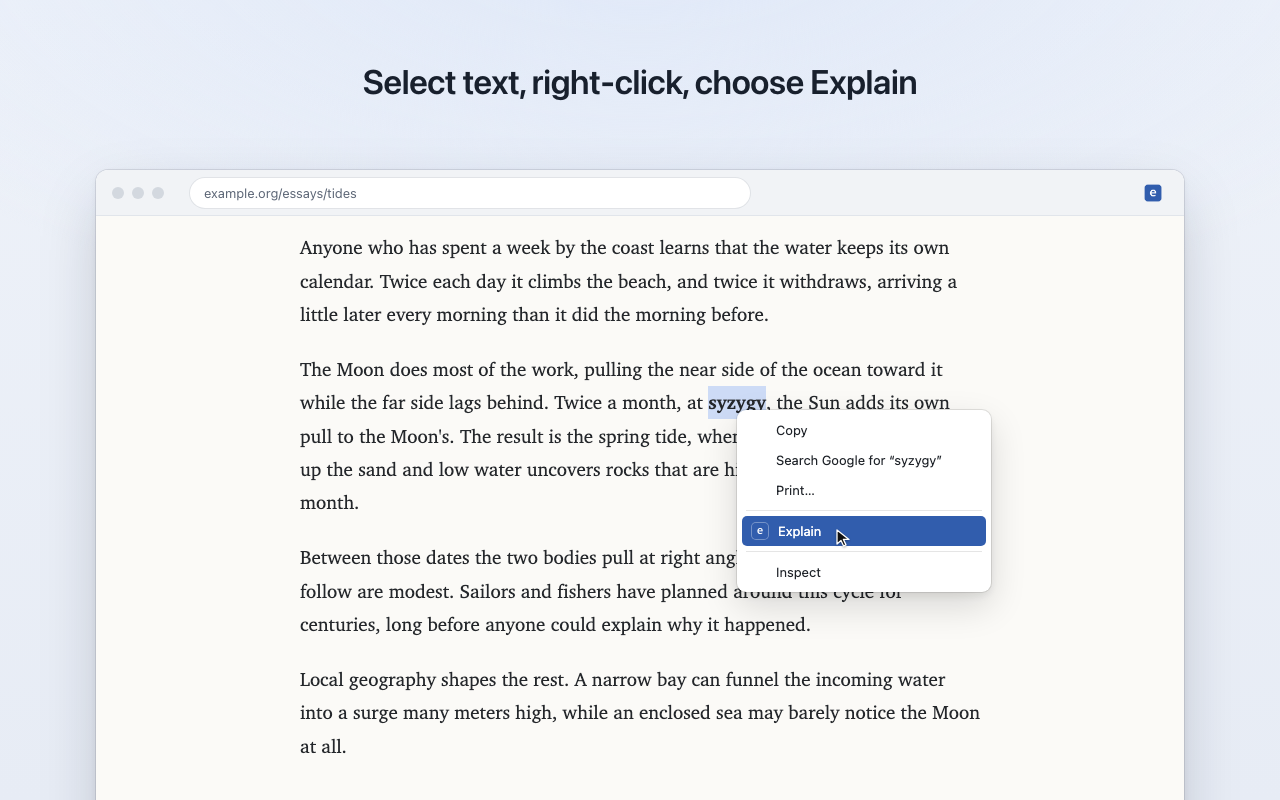
Select text, right-click, choose Explain. A short, plain answer appears right beside it.

- Select
- Explain
- Read
How it works
Add a key once, then right-click
- 1
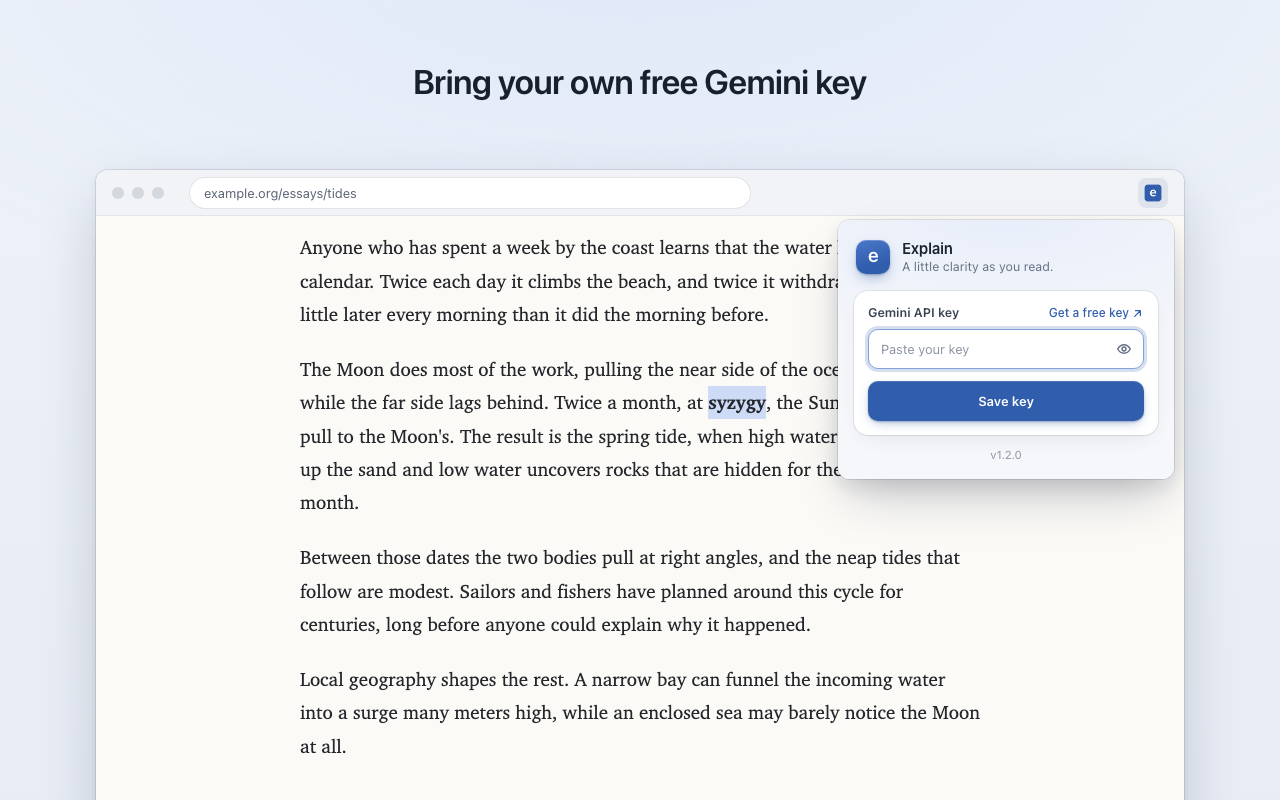
Add your key
Paste a free Google AI Studio key into the toolbar popup.
- 2
Right-click
Select any word or passage and choose Explain.
- 3
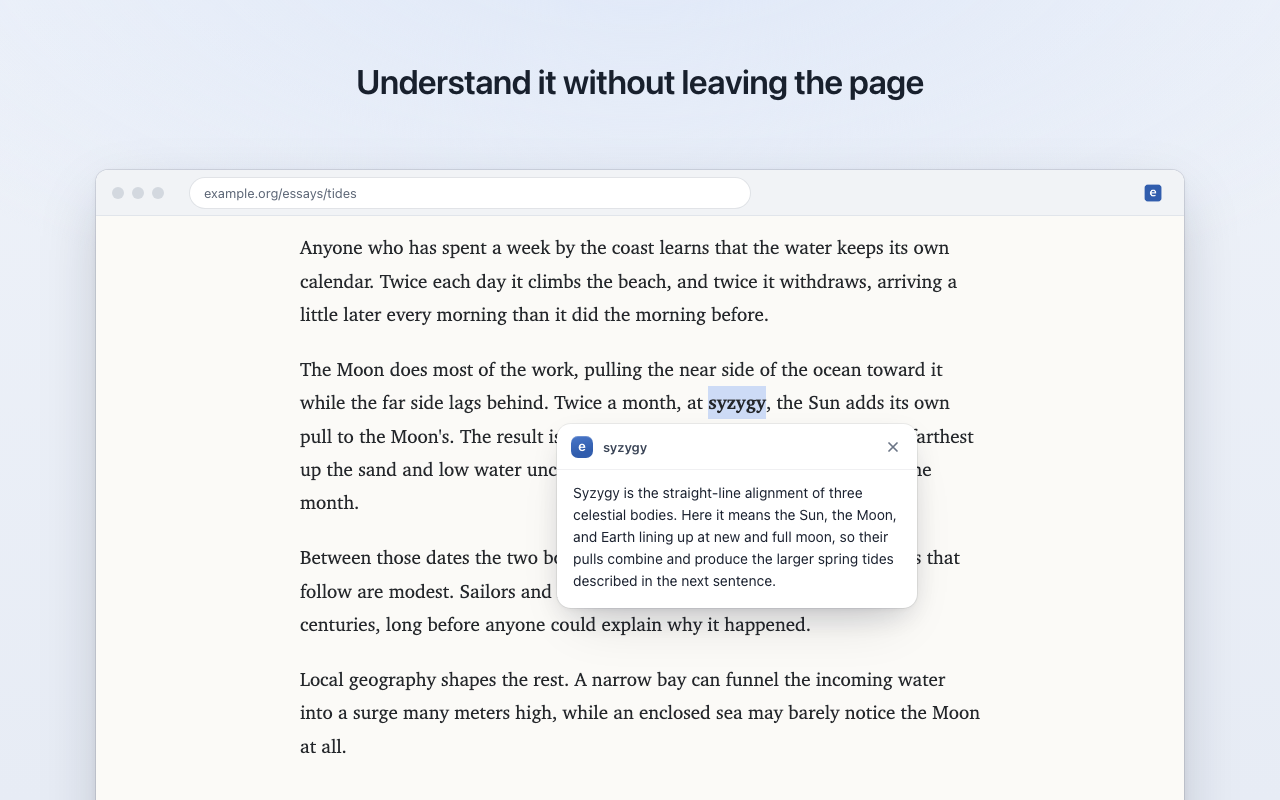
Read
The answer streams into a card beside the text. Esc closes it.
Explained in context
The paragraph around your selection is sent too, so answers fit the page.
Streams as it writes
Words appear as Gemini writes them. The page never jumps.
Quiet until asked
Nothing runs on a page until you choose Explain.
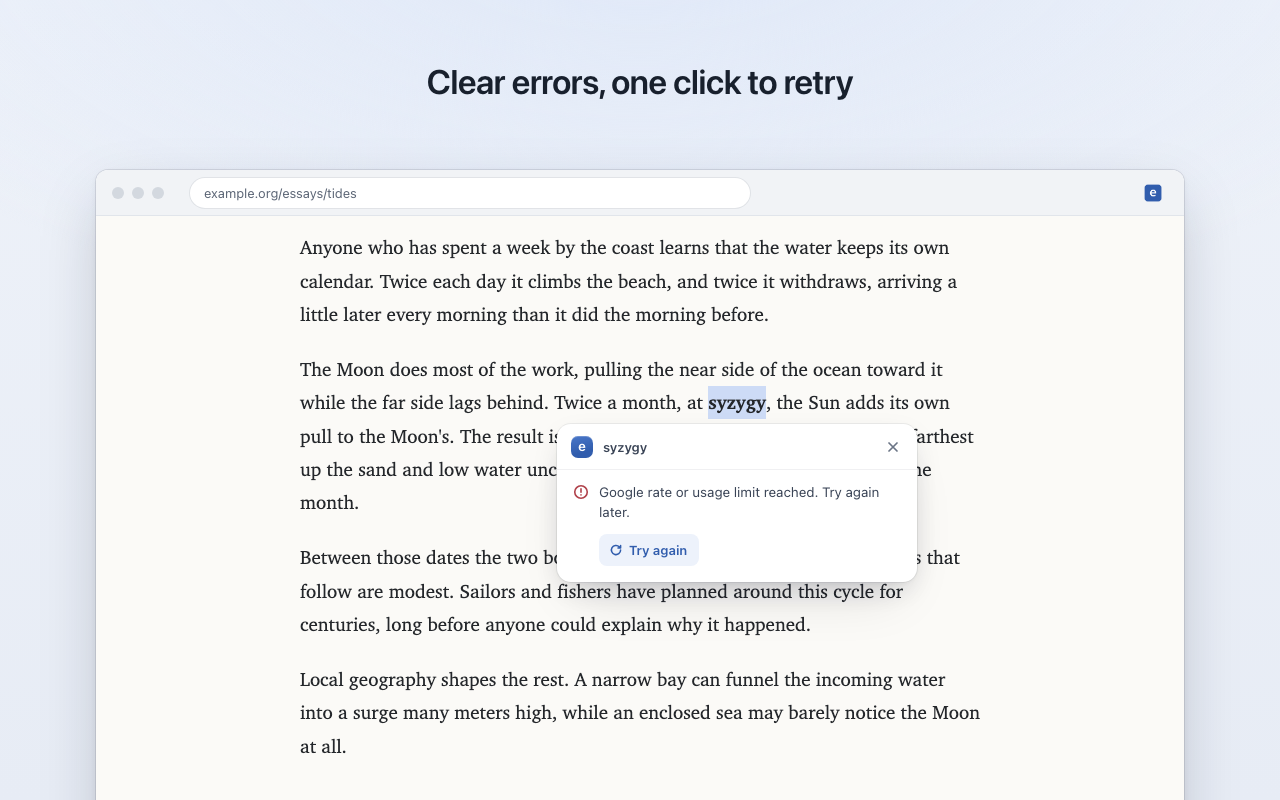
Clear when it fails
Plain error messages and a Try again button.
Screenshots
What it looks like in your browser
A word you do not know should not send you to another tab.
Privacy
Your text goes to Google, and nowhere else
No servers, no account, no analytics. Requests go straight from your browser to Google with your own key.
What is sent
- The text you selected
- The paragraph around it
- The page title
- Your API key, to authenticate the request
What is never sent
- The page address
- The page's HTML
- Anything from tabs where you did not choose Explain
What is stored
- Only your API key, in this browser
- Never synced to other devices
- Answers are shown, then discarded
Free tier. Google may use free-tier requests to improve its products, so avoid sensitive text. Read the privacy policy.
Install
Ready in about two minutes
- DownloadGet
explain-chrome.zipfrom the latest release and unzip it. - Open extensionsGo to
chrome://extensionsand turn on Developer mode. - Load unpackedClick Load unpacked and choose the unzipped folder.
- Add your keyClick the Explain icon, then Get a free key. Paste it and click Save key.
chrome://extensions. Your key is kept.explain-firefox.zip, open about:debugging#/runtime/this-firefox, click Load Temporary Add-on and pick manifest.json. Firefox removes it on restart.FAQ
Questions people ask
Does it cost anything?
Explain is free and MIT licensed. A Gemini key from Google AI Studio is free too, with rate limits. See Gemini API pricing.
What exactly is sent, and to whom?
The selected text, the paragraph around it and the page title, sent straight to generativelanguage.googleapis.com. Never the page address or HTML.
Where is my key kept?
In the extension's local storage in this browser. It is not synced, and removing Explain deletes it.
What if I choose Explain before adding a key?
The card asks for a key and the key popup opens where the browser allows it.
Which browsers are supported?
Chrome, and Firefox 140 or newer, on desktop.
Which model writes the answers?
Gemini 3.8 Flash for passages and Gemini 3.6 Flash for single words and short phrases, without Google Search.
Can it read every page I visit?
No. It only gets access to the current tab when you choose Explain.
Is it in the Chrome Web Store?
Not yet. Install it from the GitHub release for now.
More from menzo
